Showing posts with label #‎Social‬ ‪#‎Media. Show all posts

Thursday, 2 July 2015

How To SEO Your Website in 10 Steps | Use SEO


Learn how to SEO your website in 10 steps and be on your way to higher rankings within minutes. This quick start guide includes links to my well known how to SEO your website guide which covers the process in much more detail should you need it.

Step 1 : How to SEO your domain name

What

Your domain name is something like www.nameyouchoose.com


How & Why
  • If you haven't registered a domain yet look for one that contains at least one of the keywords you want to rank for.
  • Avoid Exact match domain names.
  • If you already have a website established consider skipping this, it's only for an ideal world.
Example
  • www.bicyclesmytown.com is better than www.franksbicycles.com


Step 2 : How to SEO your URLs

What

A URL might be something like www.yoursite.com/thepageiwanttorank.html. The part we are talking about is thepageiwanttorank.html.
In WordPress it is known as the 'permalink'.
How & Why
  • Your purpose is to help search engines understand the content of the page because they place weight on the content of the URL and to make your page look more attractive in the search engine results.
  • Your URL should match the page title but you can strip 'dead words' out of it such as "and", "or", "the".
Example
  • Good example: If your page title is 'bicycles for sale in mytown' your URL might be bicycles-for-sale-anytown.html.
  • Bad Example: A URL like page.php?product=bicyclesamp;town=anytownamp;transaction=forsale.


Step 3 : How to SEO your page titles

What

Each page has one title and this can be found:
  • within your HTML code tags <title> and </title>
  • are usually the post title in WordPress but can be edited if you have a plugin such as SEO for WordPress by Yoast. 
 
 
How & Why

  • Your page title tells search engines what your content is about (and they will believe you if the content matches) so you should be looking to get one or two of the keywords you want to rank for in here.
  • The page title is also the blue text user’s click on in the search results of Google, Bing, Yahoo, etc. so it should be interesting and engaging to encourage visitors to click through.
  • Every page on your site should have a unique title of no more than 70 characters (or it won't show fully in the search results).
Example
  • example: If you were trying to rank for "successful website" then the title 10 steps to a successful website would be better than Things to make your site more popular because the former a) contains your keywords and b) is more attractive to users when seen in the search results.


Step 4 : How to SEO your meta description tag

What

Each page has one meta description tag.
  • In the HTML code it looks like this: <meta description="The description of the page" />.
  • In WordPress the first 170 or so characters are taken from the post but you can edit this if you use a plugin such as SEO for Wordpress by Yoast.
How & Why
  • Every page should have a unique meta description of up to 190 characters which provides a summary of the page.
  • Meta descriptions often show as the black text in search results so they should be attractive and motivate internet users to click through.
  • Meta descriptions are ignored by search engines but as they can appear in the search results optimizing them is essential.
  • If in doubt use the first 190 characters from the pages visible content (not including the title).
  • Do not list keywords or go far over the 190 character limit.
Example
  • Sticking with our 'bicycle shop in anytown' the home page meta description might be: "We stock a wide range of bicycles for sale and we're open 7am to 7pm daily. Find us on the High Street, anytown, call us on 0800-1975-765 or order online 24/7/365. Low prices guaranteed".
Step 5 : How to SEO (or not) your meta keyword tag

What

If you have these you will find them on each page:
  • within your HTML written as <meta name="keywords" content="keyword one, keyword two, keyword three" />.
  • in WordPress there is often a field called "keywords" for each post or static page.
How & Why
If you have keyword meta tags get rid of them. They are ignored by search engines and only assist your competitors in knowing what you are trying to rank for.
Example
None - don't do it!
Step 6 : How to SEO your keyword density

What

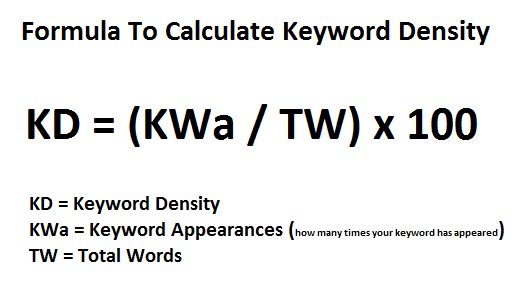
Your keyword density is the percentage of times the keyword (or phrase) that you are trying to rank for shows in each page.
So if one of your keyword phrase is 'bicycles' and this appears twice in 100 words of content your density is 2%.

 
How & Why
  • Keep your keyword density for each word or phrase between 2 and 6% in order not to appear spammy and to ensure your text is easy to read.
  • Be aware that the major search engines understand different words that have the same meanings such as 'car' and 'automobile'.
  • Make sure your keywords appear naturally within the main text content of the page.


Step 7 : How to SEO your internal links

What

Internal links are any links within your website that take the user to another page within your website.
The text within the link is known as anchor text. For example <a href="myotherpage.html">This is the anchor text</a>

How & Why
  • Whenever possible make your link text (rather than a graphic) and make that text descriptive (see examples below).
  • Where you have no choice but to use 'click here' or 'see more' consider changing them into graphics so their text is ignored and then use the title tag within the link code to be descriptive.
Example
  • If you are linking to a page about 'bicycle wheels' use 'bicycle wheels' as the text of the link, not (for example), 'click here'.
  • If you look in the box below I have not used click here as the link, instead I've used the title of the page I'm linking to.

Step 8 : How to SEO your code

What

Websites with poorly written code undermine the confidence search engines have in them because they will not be sure your pages will display correctly in all the different browsers such as Internet Explorer, Firefox, Safari, etc.
 
How & Why
  • For websites written in code before HTML5 use the W3C Validator service.
  • For websites written in HTML 5 use validator.nu.
  • Note you may not be able to reduce your errors to zero (some additions such as Facebook can cause issues) but you should look to minimize any mistakes within your control.


Step 9 : How to SEO your visitor behavior

What

What your visitors do has a direct bearing on your organic rankings so you'll need to understand what makes them stay ... and what makes them leave.

 
How & Why
  • Make sure you have Google Analytics and Google Webmaster Tools set up correctly for your website.
  • Learn to analyses the successful pages and the not so successful pages by considering the click through rates, bounce rates, time on site, exit pages, visitor flow, etc.

 Step 10 : How to SEO with link building

What

Links from other websites to yours tell the search engines you are popular so long as they are quality links from quality websites.
Ideally the content you create should persuade others naturally to link to you or share your content on social media platforms such as Facebook, Google+, Twitter, etc. so always consider your content as your number one link building tool.

How & Why
  • Do not engage in any link building 'programs' or software. These are the fastest way to getting you banned from Google.
  • Think quality, not quantity. One good link is worth 1,000 poor quality ones.
  • Remember links from social media such as Facebook, Google+, Twitter, etc. count so make it easy for your visitors to share your content.

Saturday, 11 April 2015

How to quickly check your Google Analytics setup

If you’re just getting started with Google Analytics, or wanting to do a spring clean of your #Google #Analytics #setup, then this is the checklist to guide you through the process. Share your own tips and tricks in the comments below and let us know if there’s anything you’d add.

1. Has the Google Analytics tracking code been installed correctly?


This may seem pretty obvious, but we can’t emphasise it enough! After all, if your tracking code isn’t firing correctly, you won’t be receiving the right data (or any data) in your Google Analytics account. A few tips to keep in mind:

    Make sure that the code been inserted across your website on all pages. Without a tracking code, page views will not be tracked.
    You only need to insert the code once however – duplicating the tracking code on the same page can cause problems in your data.
    Insert the Google Analytics tracking code in the right place. It is recommended to go immediately before the closing </head> tag.
    Use the latest version of the analytics tracking code – if you’ve upgraded to Universal Analytics, the classic tracking code will still work but will eventually be retired by Google.
    Better still, why not use Google Tag Manager to implement your Google Analytics code. For a full guide to Google Tag Manager setup, features and benefits, check out our blog post.
    Do a final check with Google Tag Assistant to make sure that your tag is working correctly.

2. Have site search reports been set up?


To see your user’s site search activity correctly in your Google Analytics reports, there are a few extra steps you’ll need to make. How you do it will depend on the way your website functions and the URLs your search function creates. Read our recent blog post for more details. A few other things to keep in mind:

    Ideally, the keyword needs to be stored as a parameter in the pageview URL
    Reported keywords are case sensitive, but you can add a lowercase filter to work around it. Find out more at this blog post.
    Can your website visitors search by category? You can track the selected category too.

3. Are you using event tracking?


Event tracking helps to track user interactions on any page within your website. You can track pretty much anything, including: downloads, video plays, outbound clicks, gadgets and flash elements. Get the most out of event tracking:

    Be consistent with your naming convention and plan a structure for your event categories, actions and labels.
    Think about tracking outbound links, internal campaigns, downloads and interactive content.
    Remember that non-interactive events do not affect bounce rate calculations.
    Consider implementing event-based goals that use the event value.
    Don’t get carried away and add events for absolutely everything – be strategic about what you want to track and keep Google’s data limits in mind.

We cover event tracking as one of the ways to measure your internal campaigns on this blog post.

4. Do you need to implement E-Commerce tracking?


E commerce tracking can be used to understand more about your potential customers – what they’re buying, which products are performing well, where users might be dropping out of the purchase funnel. Find out more about Google’s Enhanced Ecommerce on our blog and keep the below steps in mind:

    Make better decisions about your online store activities by ensuring that your ecommerce reporting data is accurate. Define a goal and funnel for ecommerce purchases, but don’t assign a value as that will already be measured by ecommerce tracking.
    Whether or not you’re already using ecommerce tracking, think about upgrading to the latest Enhanced Ecommerce features for even deeper insights.

You can also catch a recent webinar we presented on Enhanced Ecommerce reporting.

5. Are your goals configured correctly?


Setting up goals within your Google Analytics account is one of the first steps in becoming a data-driven marketer or organisation. Not only does it encourage a unity between your website and your business goals, it enables you to truly measure how effective your marketing activities are.

    Measure both your macro-conversions and your micro-conversions to get a better understanding of the actions your users are taking on your website.
    Remember that you can assign dollar values to non-ecommerce goals too – use symbolic values to give more meaning to your goals.

Find out how you can set up goals with our blog post.

6. Have you set your default homepage?


Do you have a default home page set up for your website? If you don’t, you might find some additional rows in your content reports.

    Condense your content reports by making sure your default homepage settings are correct.
    Be careful with this setting as it can prevent the in-page analytics report working if the default page is invalid across your website. It can also adversely modify the reported pageview URLs if misconfigured.
    As an alternative, consider a view filter to remove the default page from pageviews that include it in their URL. This way all pageview URLs can end with a forward slash, helping you get the most out of the content drill down and visitor flow reports which rely on well-structured URL paths.

Read more about default home pages on our blog post.

7. Is your Google AdWords account linked to Google Analytics?


This is a must in order to get the most out of the combined power of Google Analytics and Google AdWords. Once you link your accounts, detailed data from your paid campaigns is fed into Google Analytics, allowing for greater analysis and the ability to see the customer journey throughout your site.

    Check that clicks approximately match sessions. The numbers won’t necessarily be exactly the same, but they shouldn’t vary too much.
    If you have more than one Google AdWords account, check that each of them have been linked to the appropriate Google Analytics properties.
    Don’t add campaign tags to your Google AdWords destination links, as these will interfere with Google AdWords auto-tagging.

Find out how you can link your accounts at our blog post.

8. Do you use campaign tags to track your marketing activities?


Campaign tags are a must for marketers who are driven by ROI and want to constantly measure and improve their campaigns. It’s a simple but extremely powerful way of ensuring that the correct campaign data is being fed into Google Analytics, ready for you to see results, segment, and optimise.

    Apply campaign tags to all of your inbound links, except for Google Ad Words where auto-tagging is recommended instead.
    Check that campaign tags use consistent naming conventions and provide appropriate detail, so that your reporting data is easier to understand.
    Keep a record of your what campaign tagged links, to help maintain consistent naming conventions, and to refer to when looking back at your reports.
    Campaign tags should be added as query parameters before an anchor in the URL, i.e. after the ? and before any # symbol.
    Test your campaign tagged links prior to launching and ensure that they work correctly and are being tracked in Google Analytics.

Find out more about creating campaign tags on our blog.

9. Have a look at your hostnames: are they appropriate?


If your website spans multiple domains or subdomains, you might see your own website within the Google Analytics referrals reports. This is called self-referral and generally indicates that you need to adjust your tracking code or property configuration to correctly track visitors as they travel between your domains.

    Implement cross-domain tracking to avoid having a self-referral issue in your data.
    Filter out any unknown or suspect hostnames to ensure you have a clean dataset.

Find out more about cleaning up your referrals and setting up cross-domain tracking.